Table of Contents
Trace Exclusion Options
Traces can be excluded in the Explore Page through selecting them in the plot and excluding them through the context menu. Traces Exclusion Options allow for the automatic exclusion of traces based on set criteria. Within Sift there are currently two different Trace Exclusion Options:
- Exclude by Trace Length
- Exclude by Trial Count
The Trace Exclusion dialog is currently unavailable but this feature can be used in when running Sift in the Command Line.
Exclude by Trace Length
When Excluding by Trace Length you are asked to provide a percent. This percentage is the percent of the trace length average it is allowed to deviate by. Anything past this will be excluded. There are also two options which account for any NO_DATA that might be in the trace. These options are:
- Any NO_DATA
- Consecutive NO_DATA
Any NO_DATA finds the amount of NO_DATA points in a trace and subtracts that by the total trace length. This new trace length is then compared to the trace average and is checked to see if it is within the percentage threshold. Consecutive NO_DATA looks for gaps in the trace and if the gap is large enough it will automatically exclude the trace. A gap threshold can be chosen and will set the amount of consecutive NO_DATA points that will constitute a gap. Users are able to select specific workspaces and groups that they would like to use for this process. This will only consider these group's traces for the average length and only exclude traces from the selected groups.
Example CLI command:
ExcludeByTraceLength percent 5 groups "AnkleAngleX" "AnkleAngleY" "AnkleAngleZ"
This command can also be called using “ExcludeTL” pr “EBTL”
Exclude by Trial Count
This method will exclude whole subjects based on differing trial counts. By default, this will exclude all subjects that do not have the same amount of trials as the max amount of trials within all the subjects. Users are also able to set a number of trials a subject can deviate by to allow subjects with only a few missing trials to still be included. Users are able to select specific workspaces and groups that they would like to use for this process. This will only consider these subject's trials for the max trial and only exclude subjects from the selected groups.
Example CLI command:
ExcludeByTrialCount count 1
This command can also be called using “ExcludeTC” pr “EBTC”
Preview Excluded Traces
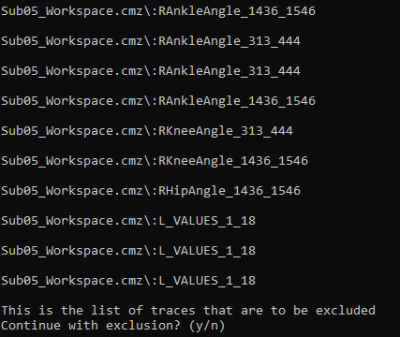
Before excluding traces that were selected by one of the two operations above, users are able to have the list of excluded traces presented to them before choosing to exclude them all. If there is something wrong with the list such as certain traces being excluded that you want to keep or too many traces being excluded than expected, the user can choose to not continue with the exclusion process.