
This is an old revision of the document!
Table of Contents
Bath University Project: The Effect of Different Gender and Gradient on Lower Kinematics
Abstract:
Step 1: Set up files correctly
First, download the .C3D file. You can find all the file through here: HYPERLINK TO ORIGINAL BATH UNI FILES, or you can skip this step then use the preprocessed files which you can find here: HYPERLINK2 TO OUR PREPROCESSED FILES.
Make sure your files are arranged in this format:
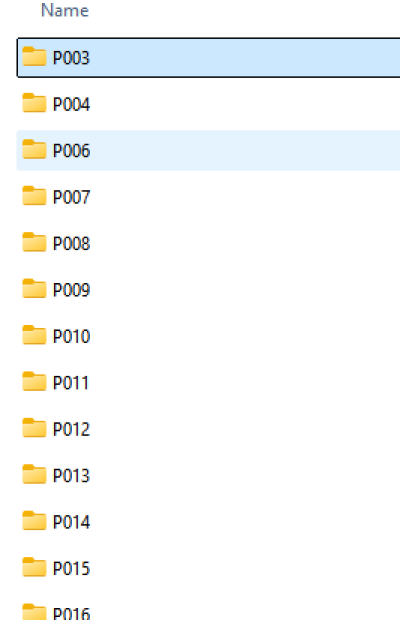
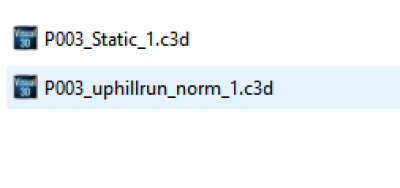
Each P00X file should contain two .C3D files. Notice that the original data from Bath will have more data. However, in this tutorial we are only uphillrun_norm was used as the dynamic trial.
Step 2: Generate .CMZ Files Automatically
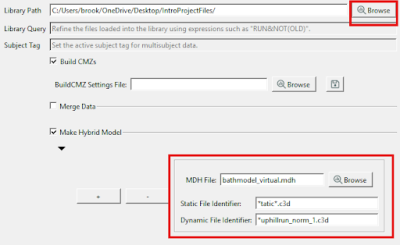
Once you have all the files ready, click Library on the top bar.

Click the first Browse for Library Path and select the file that includes all the c3d files. Then, select Build BMZs check both Make Hybrid Model and Metadata. Then click Browse to select bathmodel_virtual.mdh and manually type the *Static*.c3d and *uphillrun_num_1.c3d in Static File Identifier and Dynamic File Identifier.
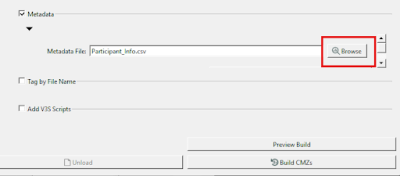
Click Browse in Metadata to select your .csv file
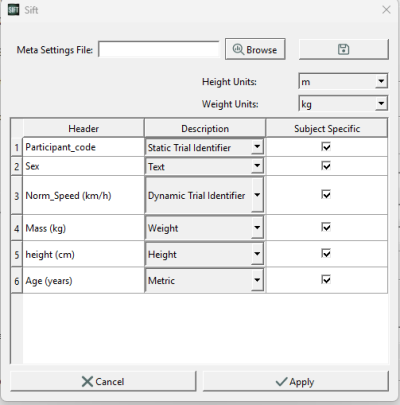
This window will pop up. Make sure the descriptions are exactly the same as shown in the second image and there are no spaces in the .csv file (you can view the file using VisualStudio Code or just any .txt reader).

Please make sure** Static Trial Identifier** for Participant_code, Dynamics Trial Identifier for Norm_Speed, and check every Subject Specific Boxes. Then click Apply
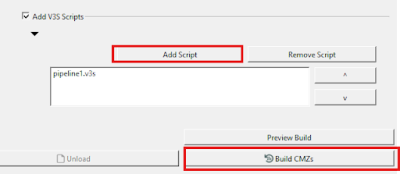
Click Add Script then add pipeline.v3s to the pipeline. Then click Build CMZs. You can download the pipelines here: HYPERLINK TO DOWNLOADIT
Step 3: Load Query
If you wish to build your own query, please visit HYPERLINK3 TO HOW to build the query. If not, you can simply download the prebuild query file here: HYPERLINK4 TO DOWNLOAD FILE.
After downloading the file, click Load Query Definition and select the file you just downloaded. You see the queries showing up on the left as shown below. Then, click Calculate All Queries and wait until it's 100% calculated.
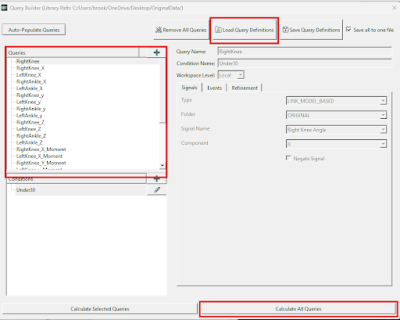
You should see this once you have successfully calculated all queries.
Step 4: Clean Up Data
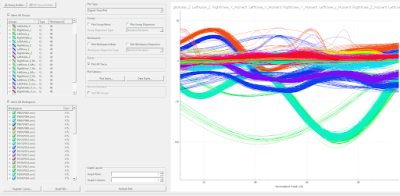
Before we proceed to the next step, we should clean up the data. In this example, we can right click on the workspace that is messy. Then, we click Exclude Selected Data for Selected Query. Notice that we are only clean one group for cleaning data.
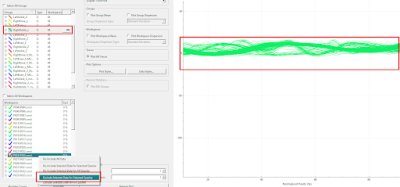
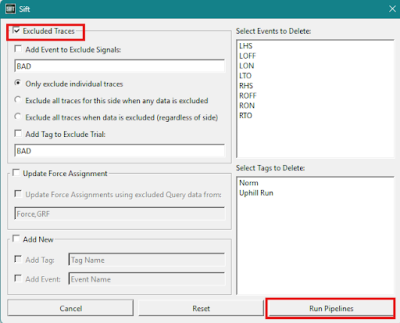
After we finished cleaning the data, we can now update the .CMZ file. First check the Excluded Traces then click Run Pipelines.
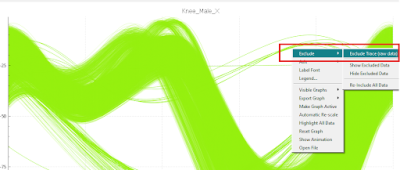
Alternatively, you can simply box the messy area and click Exclude > Exclude Trace (raw data)
Repeat this process for Female Ankle X, Female Knee Angle X, and Male Knee Angle X.
Step 5: PCA
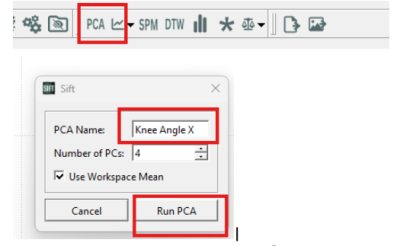
Click PCA in the top bar. Then give your PCA a name then hit Run PCA. In this case, again, we are using Knee Angle X.
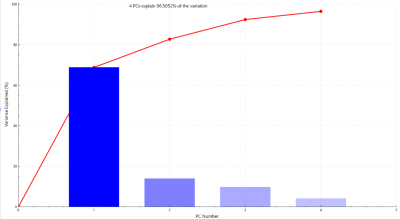
Notice that in the description above we can see “4 PCs explain 95.9439% of the variation”. The rule of thumb is if the percentage is below 93%, we need to add additional PC(s) in the previous step.
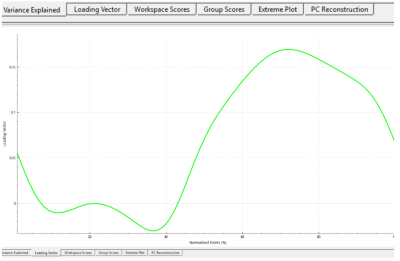
In the Loading Vector plot, we can see in which phases of the cycle, the difference between two groups is most significant. In this case, we can see that between 60% and 80% the difference is most significant.
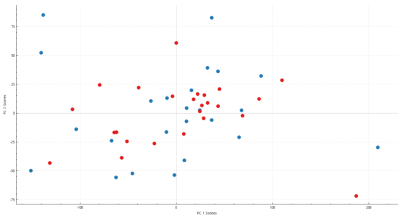
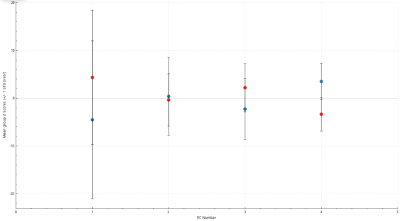
The plot below shows that within both groups, the data points are inconsistent because the points are spread out.
Step 6: SPM
We can perform SPM by clicking SPM on the top bar and selecting two groups you are comparing on the left panel. Then, we can give the GLM a name and click Create GLM.
Once the GLA is successfully calculated, we can switch to the Statistic panel and click Compute SPM.
Then give SPM a name of what you are comparing. In this case, we set our threshold to 0.050 and check the Two-Tailed box.
Now the plot has been generated, each region shade means there is significant difference in two groups between given intervals. For instance, from normalised point 34% to 60% there is a significant difference between the Knee_Angle_Male_X and Knee_Angle_Female_X.